This article shows how to start up a STM32MP257x-DK  Discovery kits (flexible and complete development platforms for the STM32MP25 microprocessor devices) with the software image for the Android-based OpenSTDroid embedded software. It is valid for the STM32MP257x-DK Discovery kits: the part numbers are specified in the STM32MP25 microprocessor part numbers article.
It lists the required material, points to the board features description, and gives the step-by-step process to set up the system.
Finally, it proposes to run some basic use cases and to discover some of the board capabilities.
1. Starter Package content[edit | edit source]
This Starter Package provides:
- the OpenSTDroid distribution binaries
- the partition layout required to flash the device with STM32CubeProgrammer
2. Checking the material[edit | edit source]
Mandatory
| PC | Linux or Windows operating systems. See PC prerequisites for more details on the required configurations |
| STM32MP257x-DK Discovery kit | Flexible and complete development platform for the STM32MP25 microprocessor device including:
|
| microSDTM card | It is populated with OpenSTLinux distribution (Linux software), and provides extra storage capacity. An 16-Gbyte minimum microSD card is needed. |
| USB type-C cable | It connects the STM32MP257x-DK Discovery kit to the PC through the USB type-C (ST-LINK/V3) connector. |
| USB type-C cable | It connects the STM32MP257x-DK Discovery kit to a USB OTG device through the USB type-C connector. |
Optional
| LCD screen - recommended | Two types of screen are possible: LVDS or HDMI |
| USB keyboard and mouse | Thanks to the USB type A connectors, the STM32MP257x-DK Discovery kit can be equipped with a full-size keyboard and mouse. |
| Ethernet cable | It can connect the STM32MP257x-DK Discovery kit to a network through the RJ45 connector. |
| Camera | MIPI CSI-2 Camera |
Optionally, devices and extension boards might be plugged to the STM32MP257x-DK Discovery kit thanks to connectors such as:
- GPIO expansion connector
- ...
3. Assembling the board[edit | edit source]
The STM32MP257x-DKx Discovery kit package (STM32MP257F-DK ) contains the items listed below.
| Position | Description |
|---|---|
| 1 | MB1605 motherboard |
| 2 | microSD™ card |

 Information Information
|
| LVDS displays and CSI cameras are available for purchase to complete this basic setup. |
The complete set contains:

| Position | Description |
|---|---|
| 1 | MB1605 main board |
| 2 | MicroSD card |
| 3 | LVDS display cable (provided via B-LVDS7-WSVGA package) (optional) |
| 4 | 7” LVDS WSVGA display with EDT ETML0700Z9NDHA panel touch panel provided with the B-LVDS7-WSVGA package (optional) |
| 5 | Camera board FFC (provided with the B-CAMS-IMX package) (optional) |
| 6 | MB1854 board AI camera provided with the B-CAMS-IMX package (optional) |

3.1. Connecting the LVDS display to the board (optional)[edit | edit source]
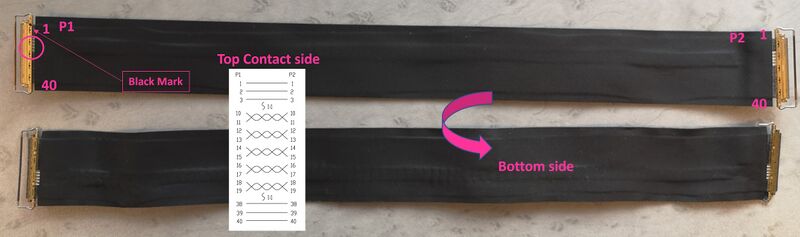
- Check the cable orientation shown above using the black mark and the white twisted pairs.
- Find the LVDS ports on the STM32MP257x-DK Discovery kit (CN2) and the display (CN1). The LVDS display box contains one cable.
- Insert the cable into each port as shown below:

3.2. Connecting the MB1854 camera board to the board (optional)[edit | edit source]
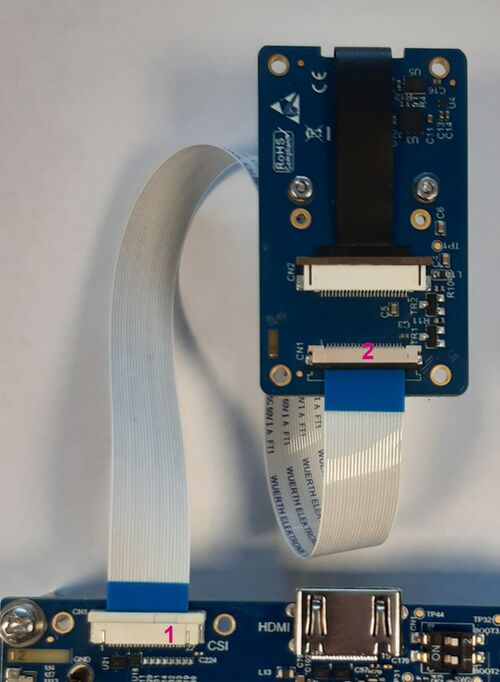
- Find the camera ports on the STM32MP257x-DK Discovery kit (CN8) (#1 in the image above) and MB1854 (CN1) (#2 in the image above). The camera box contains one FFC.
- For each port:
- Pull the black plastic (#1 in the image below) lightly to insert the contact side of the FFC towards the board (#2 in the image below).
- Push the black plastic carefully to hold the FFC (#3 in the image below).

3.3. STM32MP257x-DK Discovery kit assembled[edit | edit source]

4. Installing the tools[edit | edit source]
4.1. Installing the STM32CubeProgrammer tool[edit | edit source]
| STM32CubeProgrammer for Linux® host PC | STM32CubeProgrammer for Windows® host PC | |
|---|---|---|
| Download |
Version v2.23.0
unzip en.stm32cubeprog.zip | |
| Installation |
$> ./SetupSTM32CubeProgrammer-2.23.0.linux
$> export PATH=<my STM32CubeProgrammer install directory>/bin:$PATH
$> ln -s <my STM32CubeProgrammer install directory>/bin/STM32_Programmer_CLI /home/bin/STM32_Programmer_CLI |
|
| User manual |
| |
| Detailed release note |
| |
4.2. Preparing the USB serial link for flashing[edit | edit source]
It is recommended to use the USB (in DFU mode) for flashing rather than the UART, which is too slow.
Below indications on how to install the USB in DFU mode under Linux and Windows OS, respectively.
- For Linux host PC or Windows host PC with VMWare:
The libusb1.0 package (including USB DFU mode) must be installed to be able to connect to the board via the USB port. This is achieved by typing the following command from the host PC terminal:
sudo apt-get install libusb-1.0-0
To allow STM32CubeProgrammer to access the USB port through low-level commands, proceed as follows:
cd <your STM32CubeProgrammer install directory>/Drivers/rules

sudo cp *.* /etc/udev/rules.d/
- For Windows host PC:
Run the “STM32 Bootloader.bat” file to install the STM32CubeProgrammer DFU driver and activate the STM32 microprocessor device in USB DFU mode. This driver (installed by STM32 Bootloader.bat) is provided within the STM32CubeProgrammer release package. It is located in the DFU driver folder, \Drivers\DFU_Driver.
In case of issue, refer to How to proceed when the DFU driver installation fails on Windows host PC.
To validate the installation, the DFU driver functionality can be verified by following the FAQ instructions provided in how to check if the DFU driver is functional.
4.3. Image download[edit | edit source]

| STM32MPU distribution for Android™ | ||||
| Tag | Flash device | Link | Release note | |
| st-android-16.0.0-2026-05-26 | eMMC | Go on st.com to download the STM32MP2 OpenSTDroid Starter Package for STM32MP25 (select the adapted board) | st-android-16.0.0-2026-05-26 release note (v6.2.0) | |
| st-android-16.0.0-2026-09-08 |
|
st-android-16.0.0-2026-09-08 release note (v6.2.1) | ||

| Installation |
cd <working directory path>/Android-Starter-Package
tar xvf st-android-<version>-<date>-stm32mp257f-ev1-<flash device>-starter.tar.gz |
4.4. Flashing the eMMC images[edit | edit source]
The STM32CubeProgrammer tool is used to flash the STM32MP25 Discovery kits with the downloaded image.
Several Flash devices (microSD, eMMC...) are available on this board: see the STM32 MPU Flash mapping for Android article if you want to know more about the supported Flash memory technologies, and the Flash partitions. The steps below consider the eMMC as the Flash device.
Let's flash the downloaded image on the eMMC card:
- Set the boot switches to the off position (boot from UART/USB)

- Connect the USB type-C (OTG) port (4) to the host PC that contains the downloaded image
- Connect the USB type-C (power supply) port (1) to the power connector or a host PC
- Press the reset button (2) to reset the board

- Go to the Starter Package directory that contains the binaries and the Flash layout files
cd <Starter Package installation directory>/st-android-<version>-<date>-stm32mp257f-dk-<flash device>-starter
| Information
|
| The commands below are for a Linux® host PC; however, they are similar for a Windows host PC except that STM32_Programmer_CLI is replaced by STM32_Programmer_CLI.exe. |
- Check that the STM32CubeProgrammer tool is installed and accessible; if not, go to the installation procedure (installing the tools)
 STM32_Programmer_CLI --h
      -------------------------------------------------------------------
                        STM32CubeProgrammer <tool version>
      -------------------------------------------------------------------
- Get the device port location for the USB link
STM32_Programmer_CLI -l usb
       -------------------------------------------------------------------
                         STM32CubeProgrammer <tool version>
       -------------------------------------------------------------------

=====  DFU Interface   =====

Total number of available STM32 device in DFU mode: 1

  Device Index           : USB1
  USB Bus Number         : 003
  USB Address Number     : 005
  Product ID             : DFU in HS Mode @Device ID /0x505, @Revision ID /0x2000
  Serial number          : 001900364136500100373653
  Firmware version       : 0x0110
  Device ID              : 0x0505
- Fuse the eMMC RPMB with the RPMB test key

The starter is using RPMB as secure storage. For that purpose, the RPMB key must be fused on the eMMC.
This procedure must be followed only if the RPMB key has not already been fused on your STM32MP25 Discovery Kit.
By default, the RPMB TEST KEY is used : rpmb/rpmbk.bin
Follow the procedure described in rpmb/README.md of the starter package
- Flash the eMMC with the partition images
STM32_Programmer_CLI -c port=usb1 -w flashlayout/FlashLayout_emmc_cm33tdcid.tsv
This operation takes several minutes.
Go see the STM32CubeProgrammer article to know more about the flashing operation
5. Booting the board[edit | edit source]
Now that the image is flashed on the STM32MP257x-DK Discovery kits, let's finalize the system configuration:
- Step 0: check that the LVDS display board is well connected or connect a display through HDMI.
- Step 1: check the configuration of the switches and jumpers:
- The boot related switches must be configured so that the device (e.g. eMMC) on which the image has been flashed is selected as boot source.
- The figure below shows the boot switches for the recommended boot from eMMC (for M33-TD flavor ).

- Step 2: (optionally) connect a USB keyboard and/or a USB mouse (not provided) using the USB type-A ports (3 in the picture below).
- Step 3: (optionally) connect an Ethernet cable (not provided) to the dedicated connector (2).


- Step 4: connect the USB Power – TypeC cable to the connector (1).
- Step 5: (optionally) install and configure a remote Terminal program (e.g. Minicom on Ubuntu Linux PC or Tera Term on Windows PC) onto your host PC, and connect the ST-LINK/V3 USB type-C port (1) to a host PC that runs a Terminal program with ST-LINK/V3 virtual port.
- Step 6: press the reset button (2) to reset the board
The board boots and the system will be available after few seconds.
6. How to go further?[edit | edit source]
Now that the image is flashed on the STM32MP25 Evaluation board, you might want to switch to the STM32MPU OpenSTDroid Distribution Package, in order to modify or tune the STM32MPU Embedded Software distribution with your own developments.
Arm® is a registered trademark of Arm Limited (or its subsidiaries) in the US and/or elsewhere. 