This article explains, using STM32CubeIDE, how to update the SD™ card memory, located on an ST board (e.g. here the STM32MP257x-EV1 Evaluation board  ) with
- a new device tree generated by STM32CubeMX
- the bootloader objects

 Information Information
|
| In this article, explanations are applicable to any version of Yocto-based OpenSTLinux embedded software. |
| Trusted domain applicability
|
| This article is not applicable to M33-TD flavor of STM32MP2 series
|

1. Prerequisites[edit | edit source]
You should have read instructions given in this article How to import and build STM32MPU OpenSTLinux projects in STM32CubeIDE before continuing with the current article.
2. Overview[edit | edit source]
The different steps to update an SD™ card with a customized trusted image are the following ones:
- Initialize the SD™ card with the Starter Package image by means of the STM32CubeProgrammer,
- Within STM32CubeIDE:
- customize the trusted image, using the device trees generated by the STM32CubeMX,
- compile the corresponding Linux® device tree and bootloader images,
- update them on the running board (e.g. STM32MP257x-EV1 Evaluation board ),
- Check that the new customization is correctly set up,
All those steps are explained in the chapters below.
3. Initialize the SD™ card with the Starter Package[edit | edit source]
Initialize the SD™ card with the Starter Package image with STM32CubeProgrammer. For that, select the Starter package corresponding to the OpenSTLinux projects imported in STM32CubeIDE and to the targeted board (here, example is with STM32MP257x-EV1 Evaluation board ) and jump to chapter Downloading the image and flashing it on the board.
Before executing the next steps, check the bootloader version, which is visible in boot messages:
- TF-A BL2 version, booting from the SD™ card memory

- U-boot version and extlinux.conf file used, booting from the SD™ card memory

- extlinux.conf content before update

4. Build the trusted image inside STM32CubeIDE with the new expected device trees[edit | edit source]
After the customization of hardware resources within the STM32CubeMX (visit this page), the new device trees for Linux® and for the bootloader are generated.
The next step is to build a new trusted image; this is covered also within STM32CubeIDE with:
- Linux® device tree compilation How to import and build STM32MPU OpenSTLinux projects in STM32CubeIDE#Build an OpenSTLinux project
- bootloader images generation, as explained in How to import and build STM32MPU OpenSTLinux projects in STM32CubeIDE#Generate Bootloader projects
Note that for Linux® device tree modifications, only the device tree needs to be updated as described hereafter.
5. Update the board with new Linux® device tree[edit | edit source]
In this step, the board (here, with example of STM32MP257x-EV1 Evaluation board ) is up and running with network access: target status is green.
After having compiled the OpenSTLinux project with the device tree generated by STM32CubeMX, you must:
- update the board bootfs with the new .dtb under /boot
- and adjust /boot/mmc0_extlinux/extlinux.conf' to declare the new device tree and set it as default.
For that, follow the steps explained below:
- select the Cortex-A Linux® Deployment shortcut configuration available from Linux® project Run As... menu.

- Validate your choice and use the Run button. You get in a dedicated Linux® Deployment console a message like this one:

- For STM32MP2-A35-TD flavor , if connexion was lost after deployment, it's recommended to run the "fw_cortex_m33.sh" in order to establish network connexion to the board :
cd /usr/local/Cube-M33-examples/STM32MP257F-EV1/Demonstrations/USBPD_DRP_UCSI# ./fw_cortex_m33.sh start
- Check the u-boot LABEL after the SD™ card Linux® device tree update (DEFAULT and LABEL have changed)

- Check the content of extlinux.conf after the SD™ card Linux® device tree update (DEFAULT and LABEL have changed)

6. Update the board with new bootloader images[edit | edit source]
6.1. For STM32MP1 series[edit | edit source]
In this step, the STM32MP157x-EV1 Evaluation board is up and running with network access: target status is green.
After having built customized bootloader images, you must update the STM32MP157x-EV1 Evaluation board .
- Select the Cortex-A project in STM32CubeIDE and right-click to get the Cortex-A Bootloader Deployment shortcut.

The connection is automatically set and you need to scan the STM32MP15x target storage, using the Scan... button.
This storage list depends on the board and on the boot storage used.
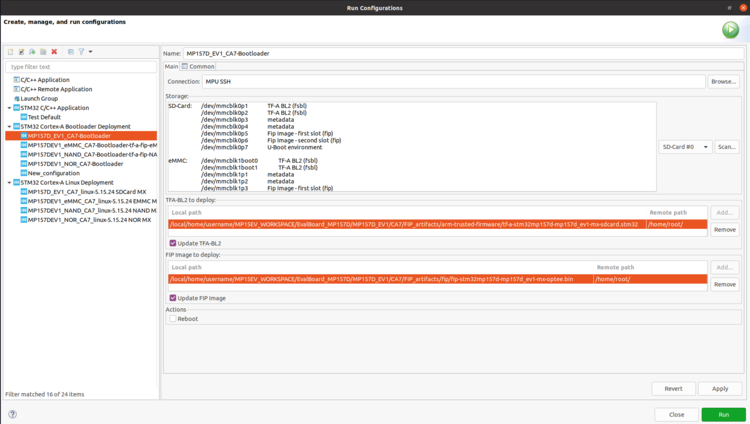
Then, select the storage to update (SD-Card #0 here), and the TF-A BL2 and FIP image to update from FIP_artifacts/.
Here is the corresponding STM32 Cortex-A Bootloader Deployment configuration:
- Click on Run. You get in a dedicated Bootloader Deployment console the following message:

6.2. For STM32MP2 series - A35-TD flavor [edit | edit source]
For STM32MP21x lines  / A35-TD flavor , you have to add the following flags to <CubeMX project location>/CA35/DeviceTree/projectname/optee-os/conf.mk:
- CFG_STM32MP21=y
- CFG_STM32MP23=n
- CFG_STM32MP25=n
- CFG_STM32MP21_CLK=y
- CFG_STM32MP21_RSTCTRL=y
for STM32MP25x lines / A35-TD flavor , you have to add the following flags to <CubeMX project location>/CA35/DeviceTree/projectname/optee-os/conf.mk:
- CFG_STM32MP25=y
- CFG_STM32MP23=n
- CFG_STM32MP21=n
- CFG_STM32MP25_CLK=y
- CFG_STM32MP25_RSTCTRL=y
In this step, the board (here STM32MP257x-EV1 Evaluation board ) is up and running with network access: target status is green.
After having built customized bootloader images, you must update the board.
- Select the Cortex-A project in STM32CubeIDE and right-click to get the Cortex-A Bootloader Deployment shortcut.

The connection is automatically set and you need to scan the STM32MP25x target storage, using the Scan... button.
This storage list depends on the board and on the boot storage used.
Then, select the storage to update (SD-Card #0 here), and the TF-A BL2 and FIP image to update from FIP_artifacts/.
Here is the corresponding STM32 Cortex-A Bootloader Deployment configuration:

- Click on Run. You get in a dedicated Bootloader Deployment console the following message:

7. Check new bootloader version after customization with STM32CubeIDE[edit | edit source]
After the update, the new bootloader version can be checked by comparing the version appearing in boot messages: the TF-A BL2 and U-Boot versions are modified and Linux® uses the generated device tree.
Here are the new boot messages:
- TF-A BL2 updated version, booting from the SD™ card memory

- U-Boot updated version and Linux® device tree, booting from the SD™ card memory

Arm® is a registered trademark of Arm Limited (or its subsidiaries) in the US and/or elsewhere. 